Shopify
The PayLater plugin offers merchants the ability to integrate "Buy Now, Pay Later" (BNPL) functionality into their Shopify stores, providing customers with flexible payment options. This comprehensive guide will walk you through the step-by-step installation and configuration process for seamless integration.
How the customer journey works
Please read this before you set anything up. PayLater does not behave like a normal card payment, so understanding the flow in advance saves you and your shoppers a lot of confusion.
Shoppers are not redirected to PayLater during checkout, and PayLater is not a hosted step inside the checkout. The order is placed right away, and the payment link is sent to the shopper by email after the order is placed. Until the shopper pays, the order sits in Shopify as "Payment pending", which is expected and not an error.
The shopper's journey, step by step
- The shopper adds items to their cart and goes to Shopify's normal checkout.
- They choose "Split in 4 interest-free payments with PayLater" from the payment methods, alongside your other options.
- The order is placed immediately in Shopify. The shopper is not redirected to PayLater at this point. This is the single most misunderstood part of the flow.
- The Shopify order is created with a payment status of "Pending" and is not yet paid. Stock is committed to the order at this moment.
- Shopify notifies PayLater of the new order. Within a few seconds, PayLater creates a payment link for it.
- The payment link is delivered to the shopper by email. It is also written onto the Shopify order as an order note ("PayLater Payment Link: ..."), and the order is tagged "PayLater" and "PaymentLinkSent", so you can always find and resend the link from your Shopify admin.
- The shopper opens the link, completes their PayLater application, and sets up the installment plan. This happens on PayLater's site, outside Shopify.
- When the payment is complete, the Shopify order is automatically marked as Paid, and you fulfill it as normal.
- Halfway through the payment window, if the order is still unpaid, the shopper automatically receives a reminder email with the link again.
- If the order is still unpaid when the window expires, the Shopify order is automatically canceled, the stock is restocked, the pending payment is voided so the order reads "Voided" rather than "Payment pending", and the shopper receives a cancellation email.
- Refunds are handled by you from the PayLater merchant dashboard, not from Shopify.
What every merchant must know before switching it on
These limits decide whether a shopper ever receives a payment link, so set your store up for them before you go live.
- Minimum order value is 300 QAR, maximum is 25,000 QAR. An order outside this range gets no payment link and no email, so the shopper receives nothing at all. Hide or disable PayLater at checkout for baskets below 300 QAR so shoppers cannot select a method that cannot work for their order.
- An email address is required. If a shopper checks out with a phone number only, there is no address to send the link to and no email goes out. The link still appears on the Shopify order, so you can send it to the shopper manually. To avoid this, require an email address at checkout (Shopify admin: Settings → Checkout → Customer contact method).
- Orders must be in Qatari Riyal. PayLater settles in QAR, so your store's orders need to be in QAR.
- The payment window is 12 hours by default and can be configured for your store. The reminder email is sent at the halfway point. The window can also be turned off entirely if you do not want orders to be canceled automatically.
- "Payment pending" is normal. Until the shopper pays, the order legitimately sits as "Payment pending" in Shopify. This is expected behavior, not a problem with the order.
Manual Step
Step 1: Setup PayLater as a Manual Payment Method
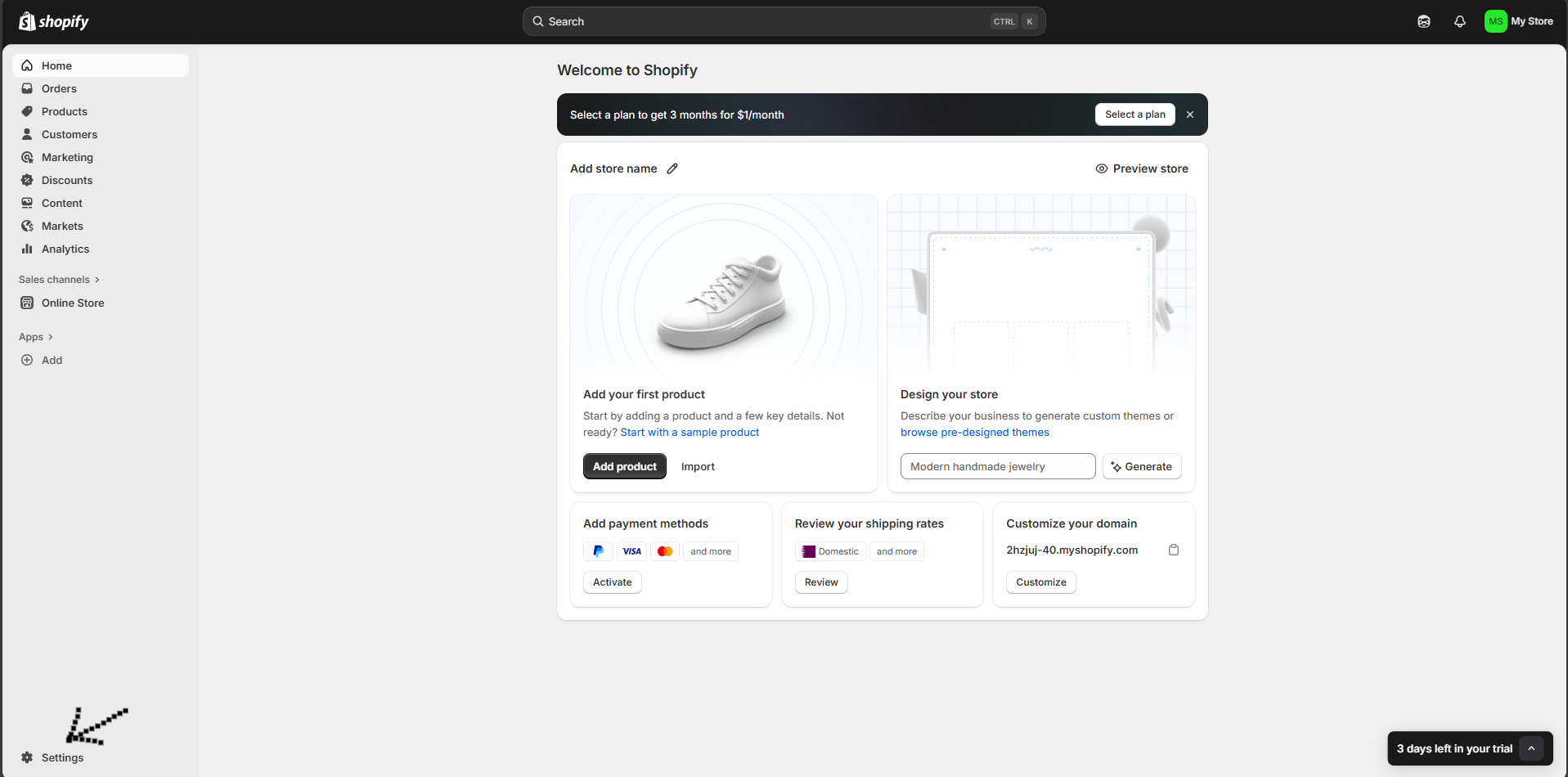
- Go to your Shopify Admin (ex. [yourstore.com].myshopify.com/admin) and click on Settings in the left-hand navigation panel
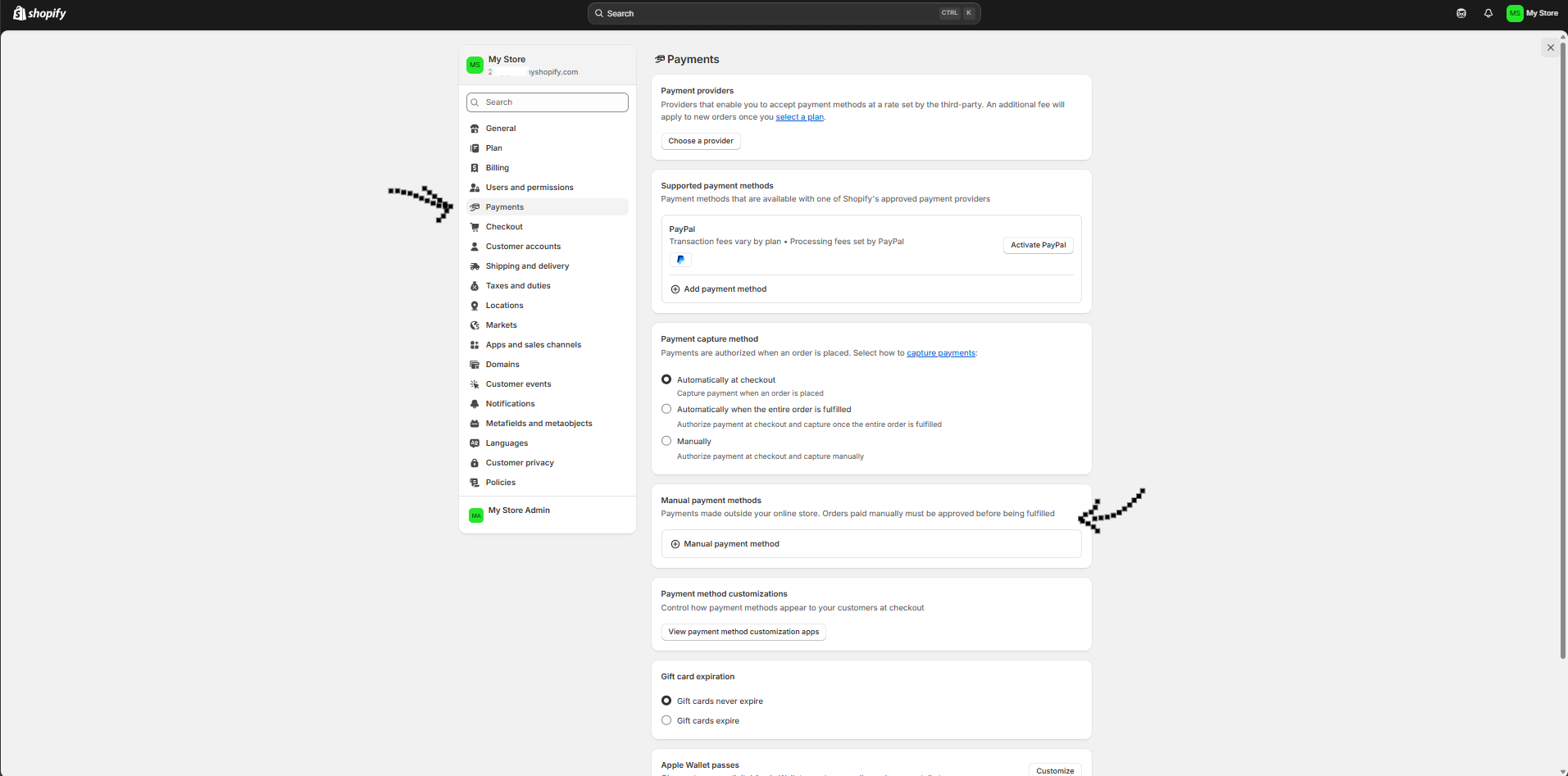
- Click on the “Payment Menu” from left menu & scroll down to the “Manual payment methods” section.
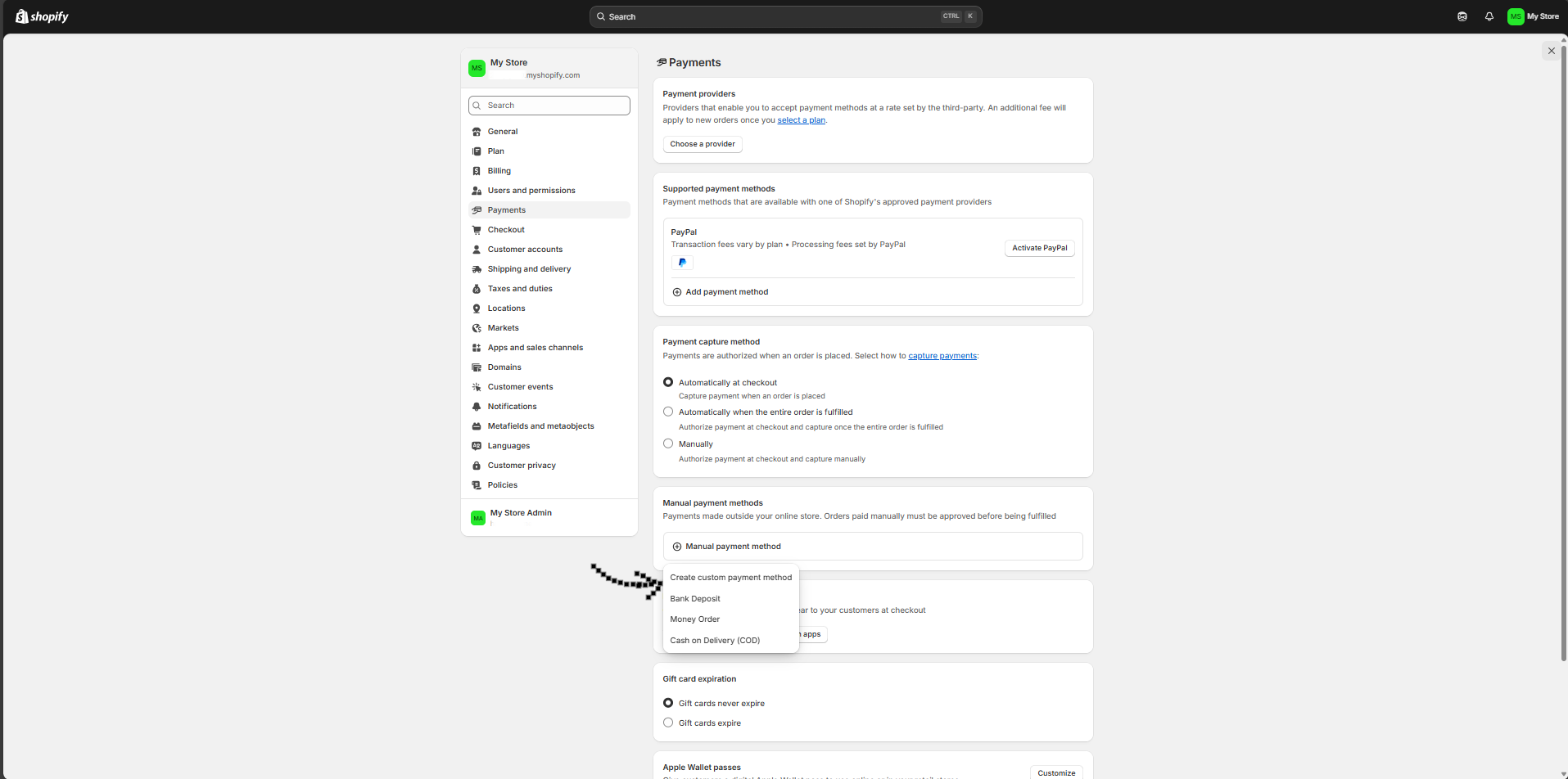
- In this section, click on the dropdown labeled “Manual payment methods” and select "Create custom payment method"
- In the “Set up manual payment form”, copy/paste the details as shown below in the appropriate field (NOTE: You can write according to your checkout design):
- (Custom payment method name) Split in 4 interest-free payments with PayLater
- (Additional Details) PayLater allows you to split your purchase into 4 interest-free installments.
- (Payment Instructions) You'll receive an email with a secure link from PayLater to complete your payment.
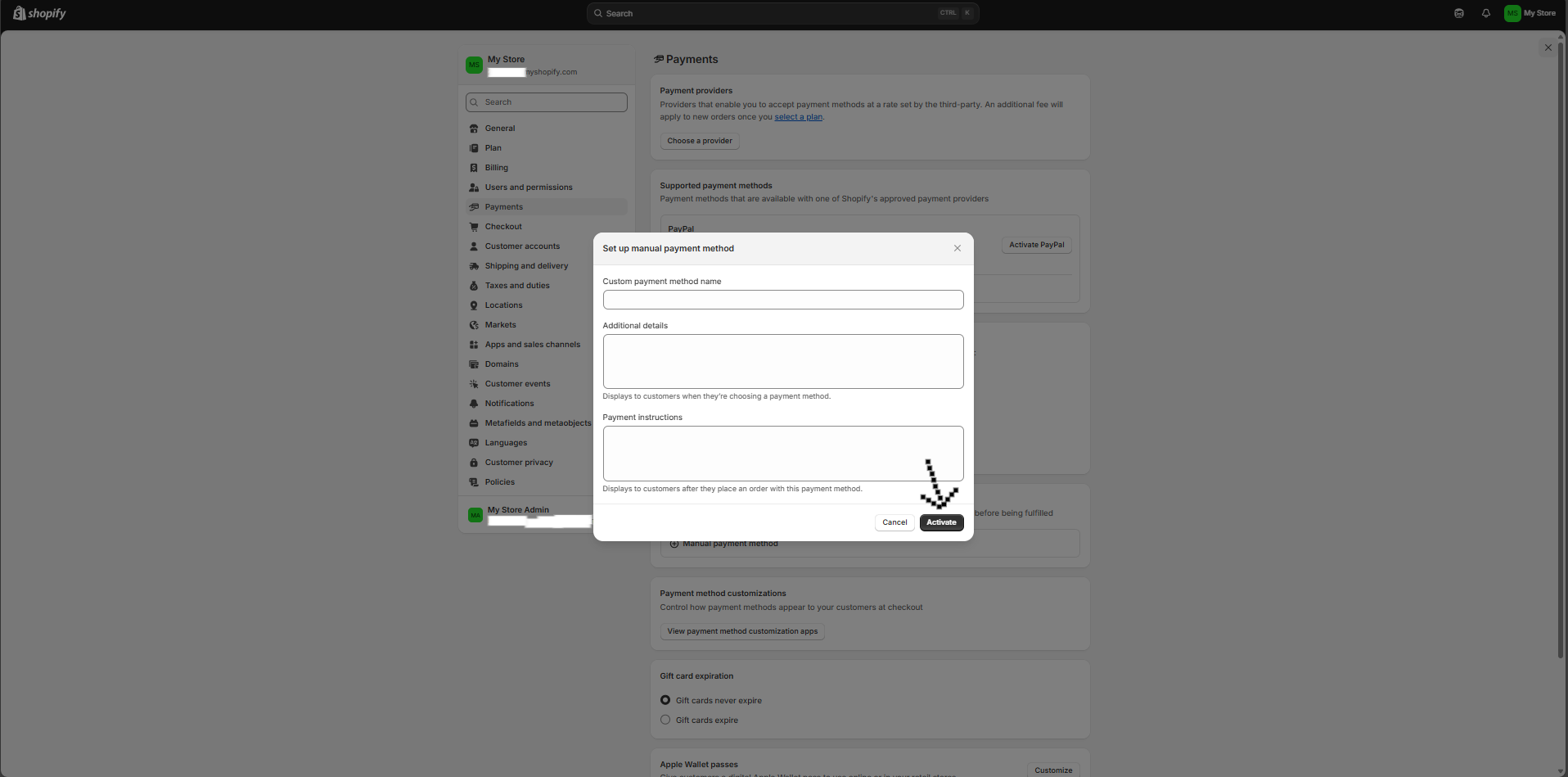
- Click on the "Activate" button to save your work. You will see “Split in 4 interest-free payments with PayLater“ appear under the Manual Payment Methods.
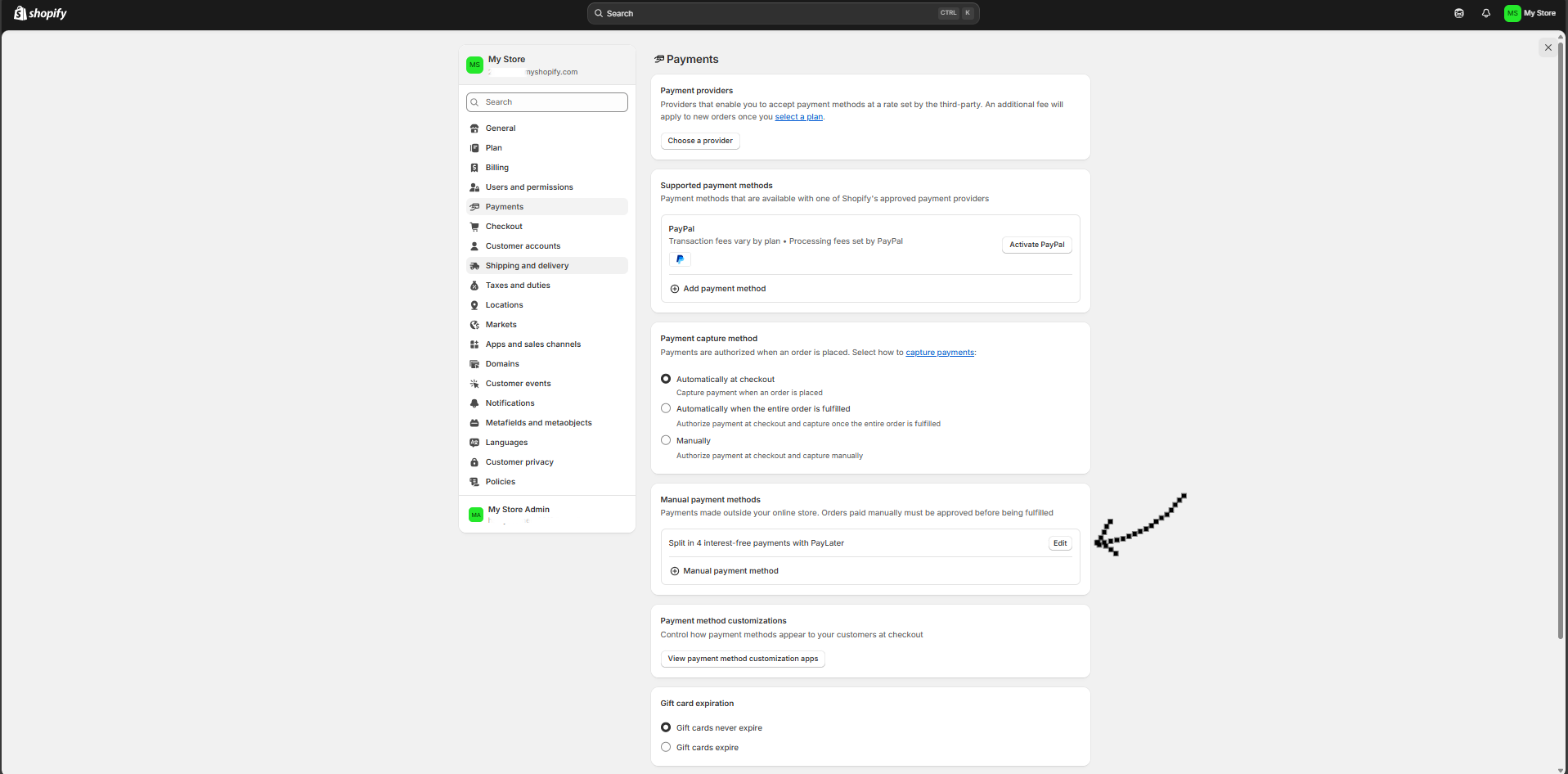
Step 2: Setting Webhook
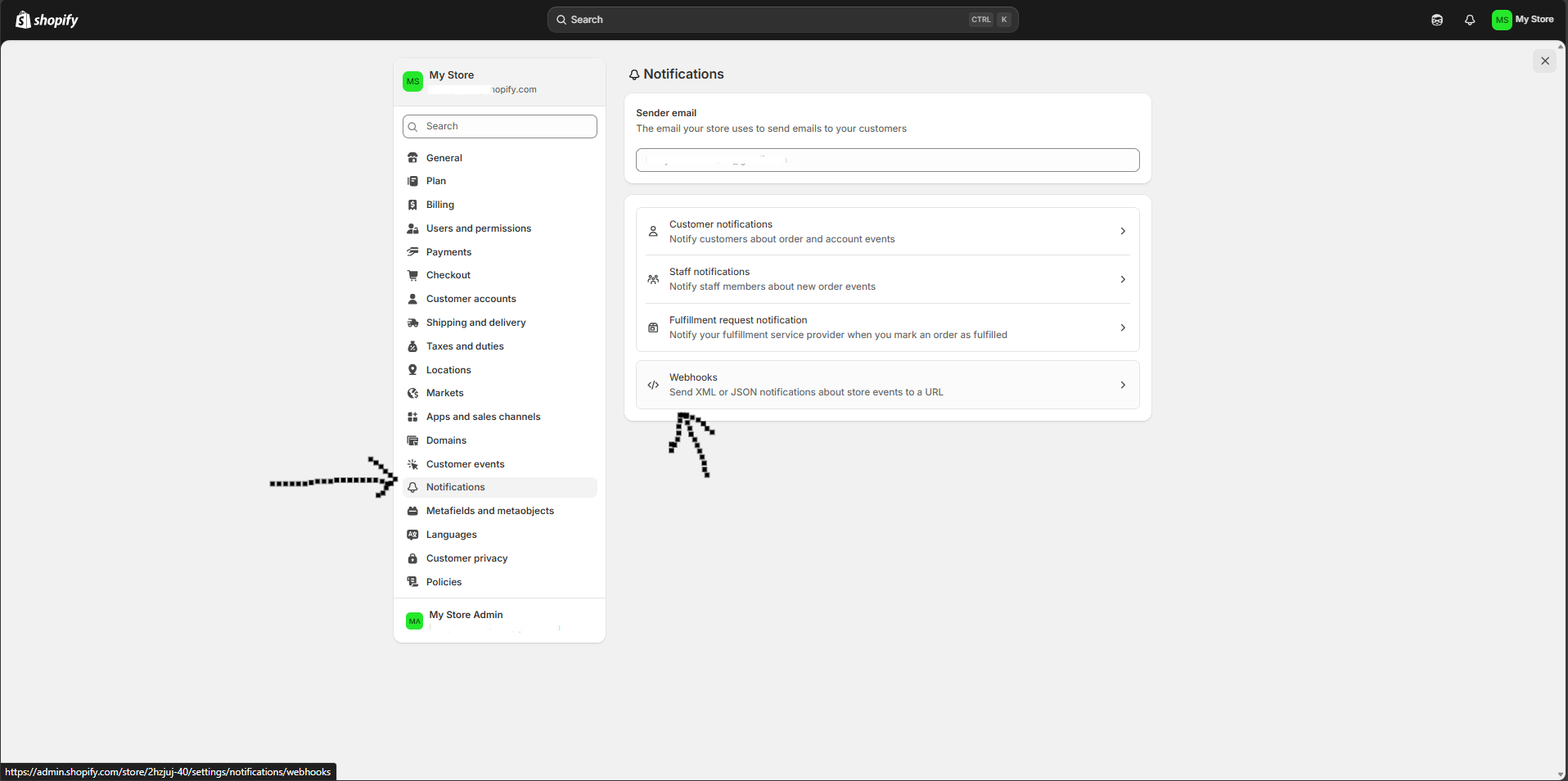
- In Settings, go to “Notifications“ in the left menu and then click on the Webhooks.
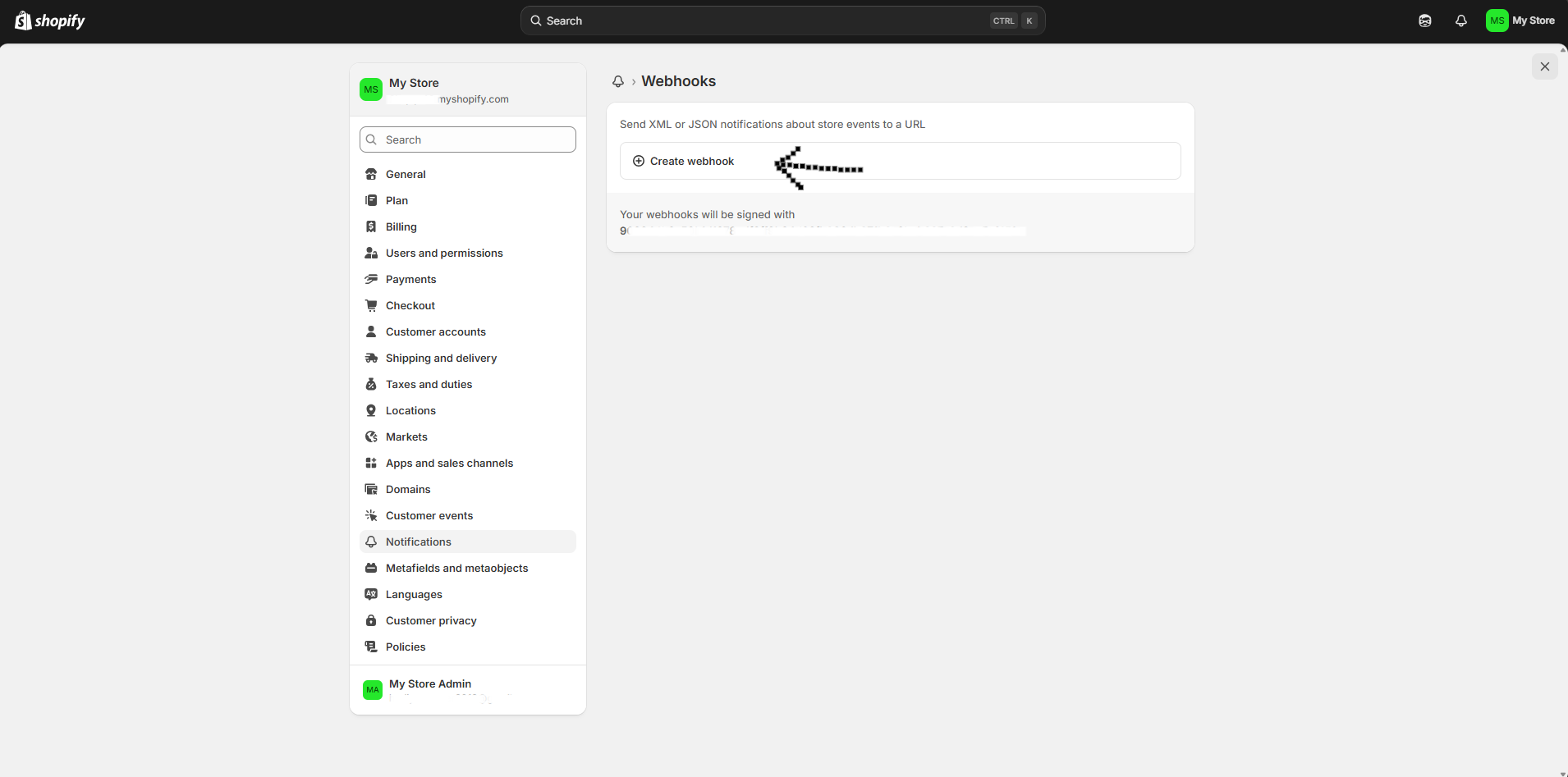
- Now click “Create webhook”
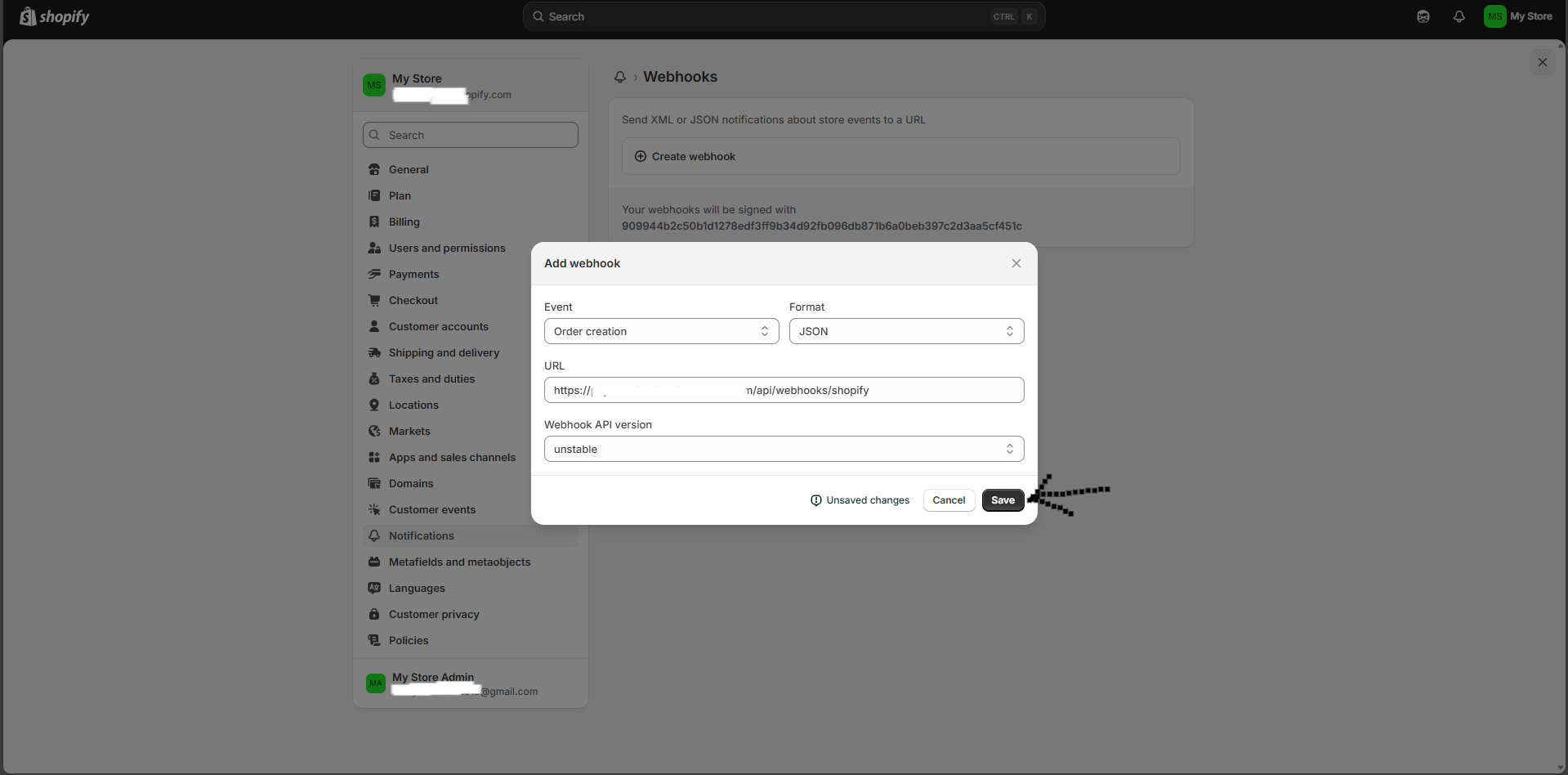
- In the “Add webhook” form, copy/paste the details as shown below in the appropriate field and click on Save
- Event (Order Creation)
- Format (JSON)
- URL (https://shopify.paylaterapp.com/api/webhooks/shopify)
- Webhook API version (Unstable)
Step 3: Linking Shopify to PayLater Backend App
- In Settings, go to “Apps and sales channel“ in the left menu and then click on the Develop apps button on the top.
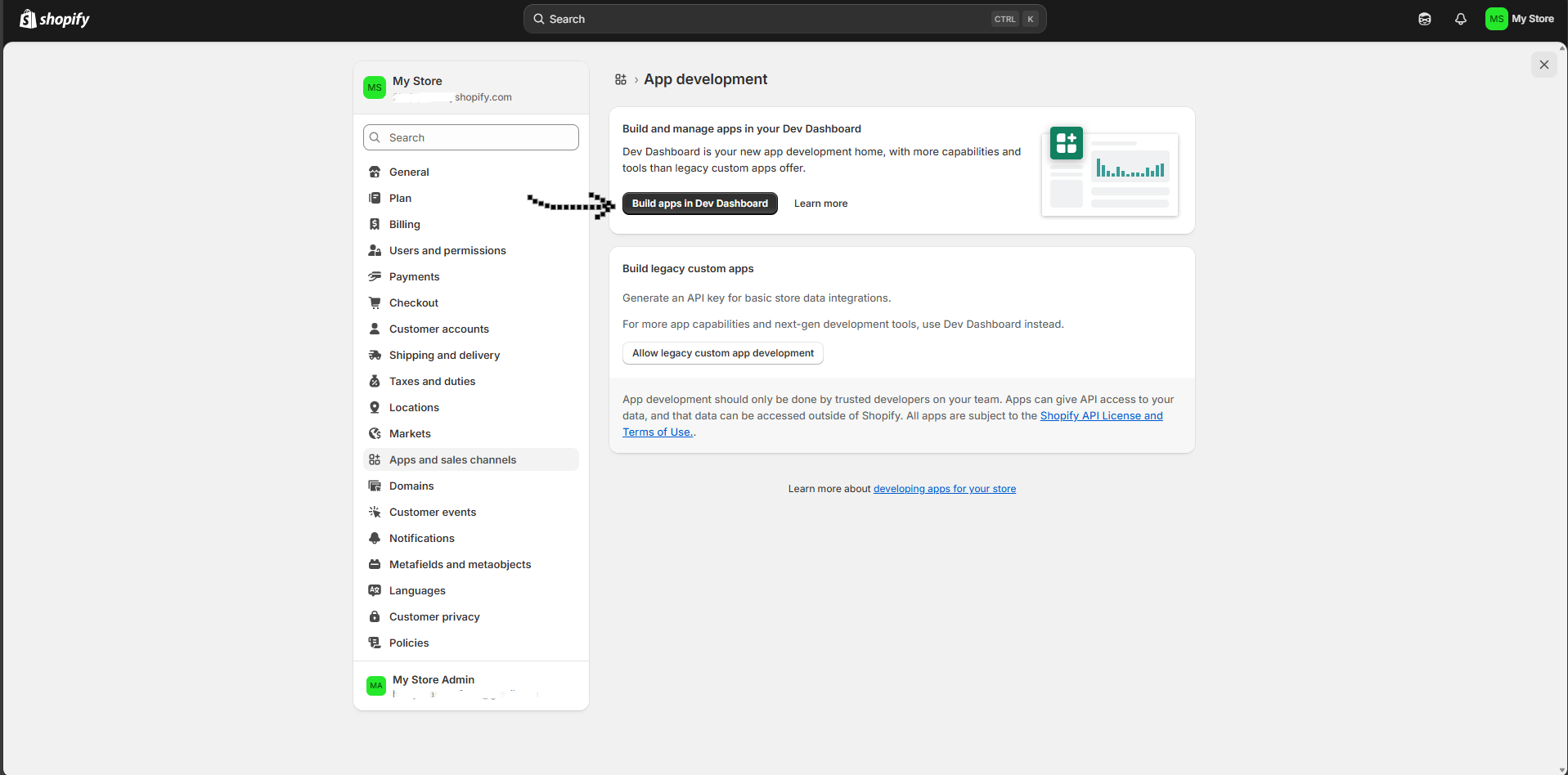
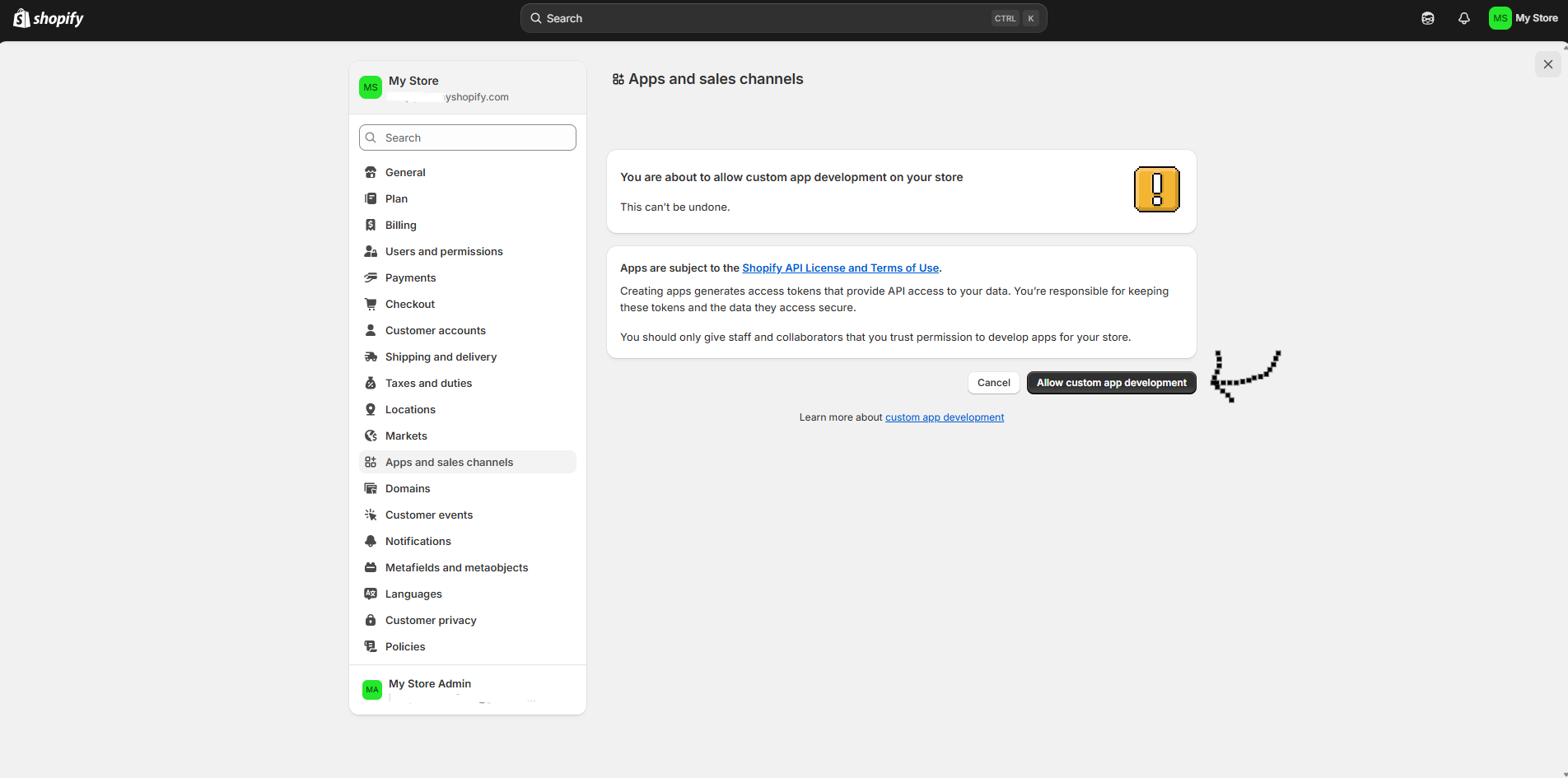
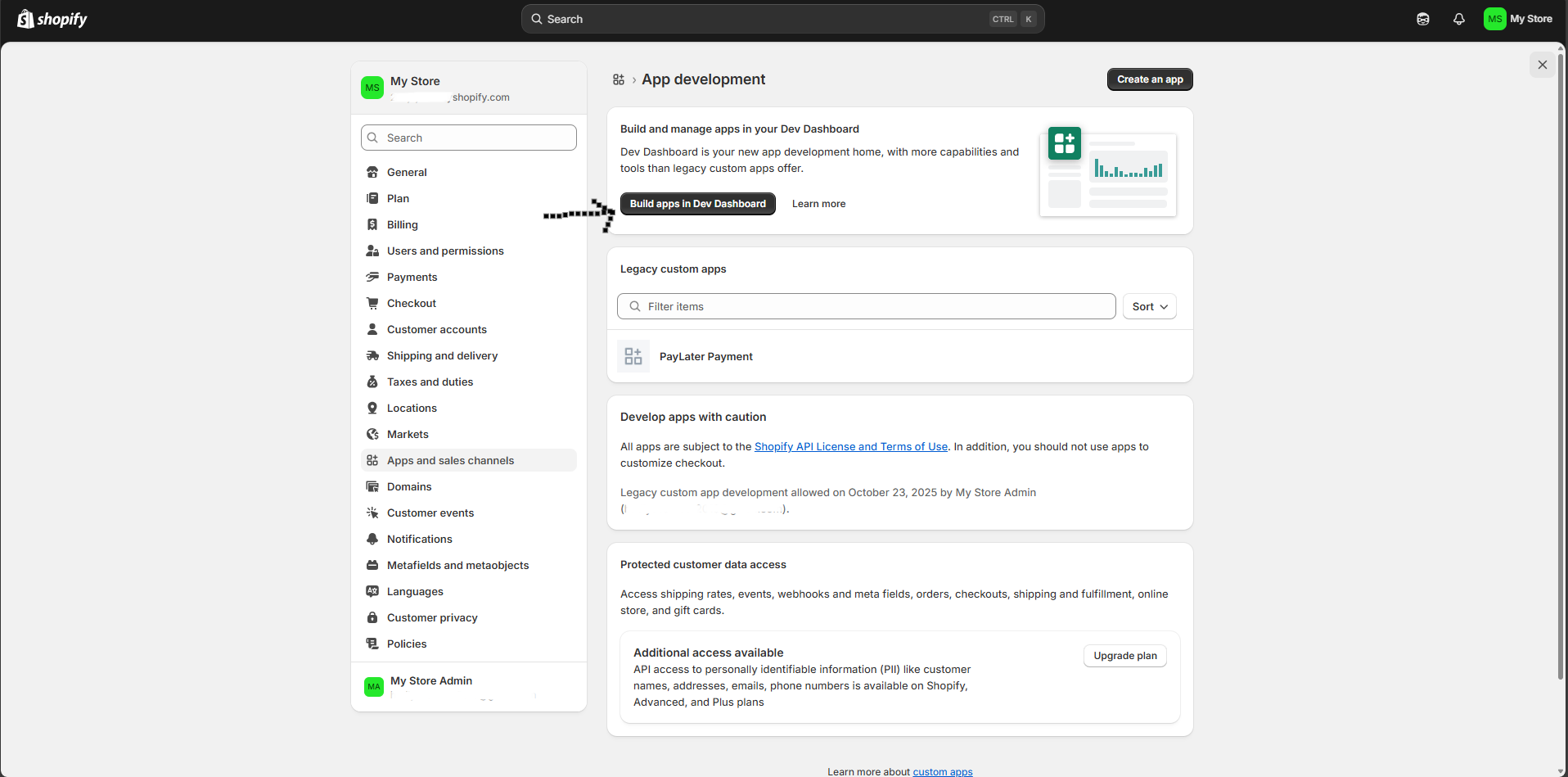
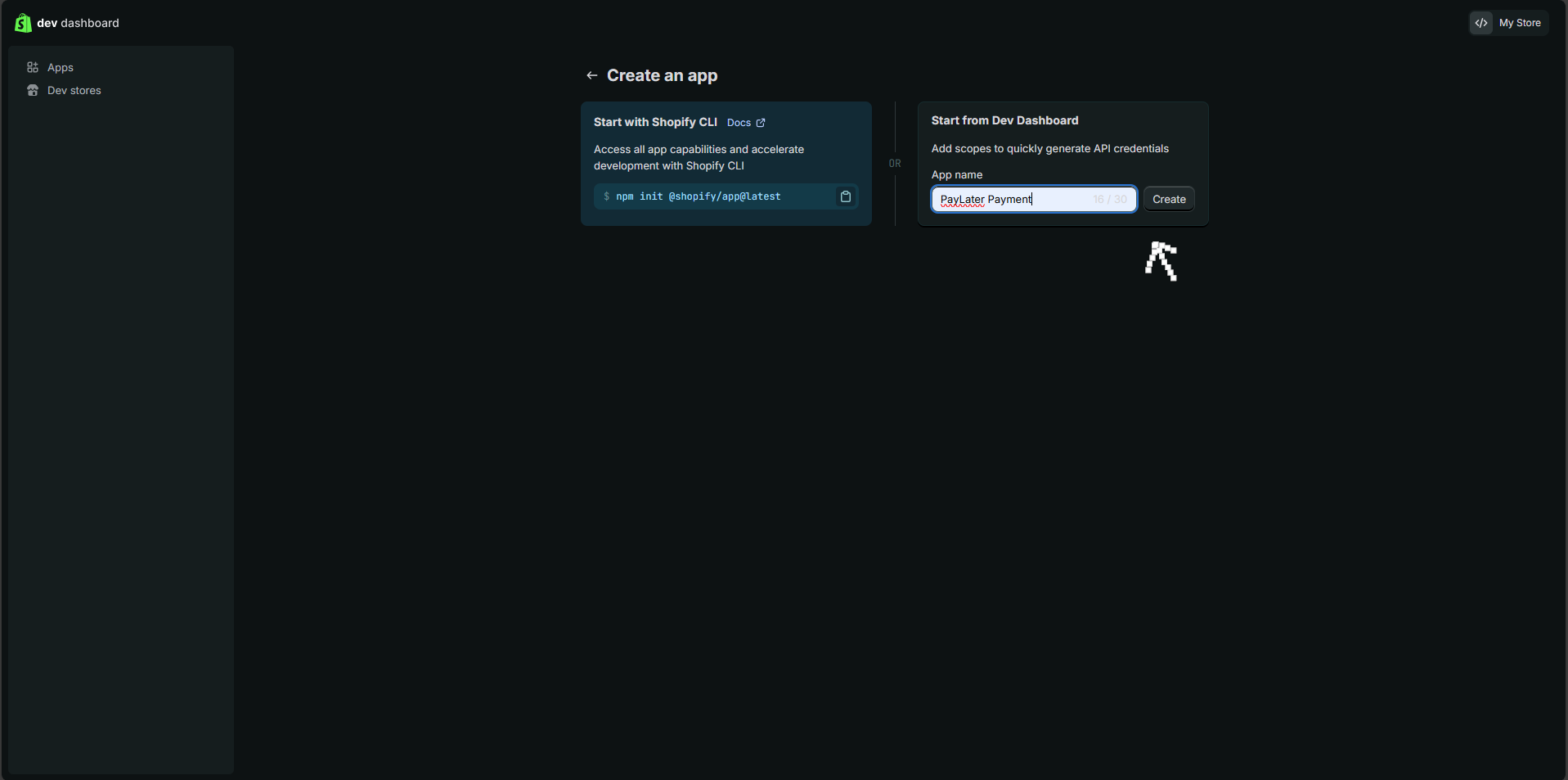
- Click on “Create an app“
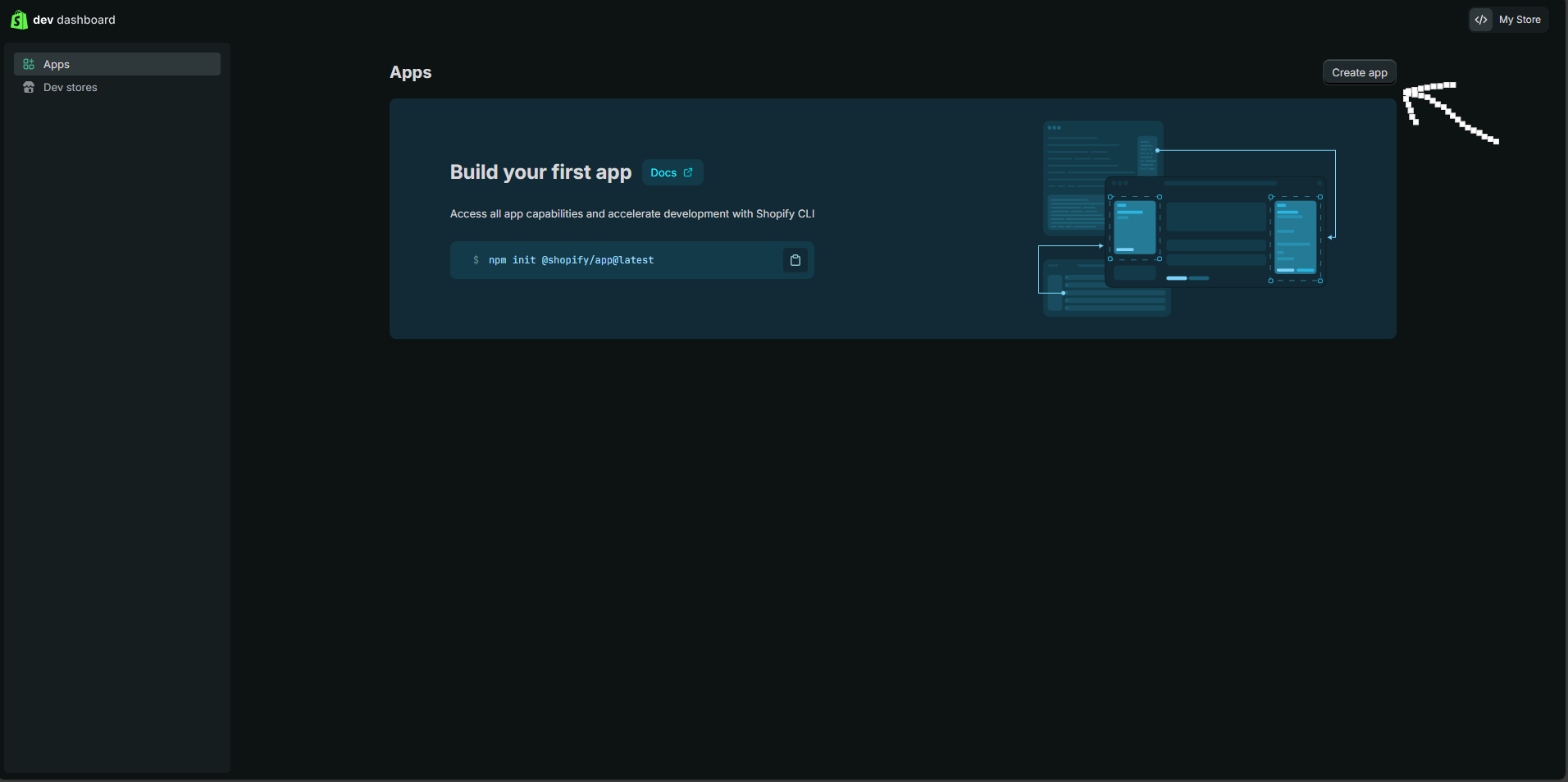
- Set “PayLater Payment” as App name
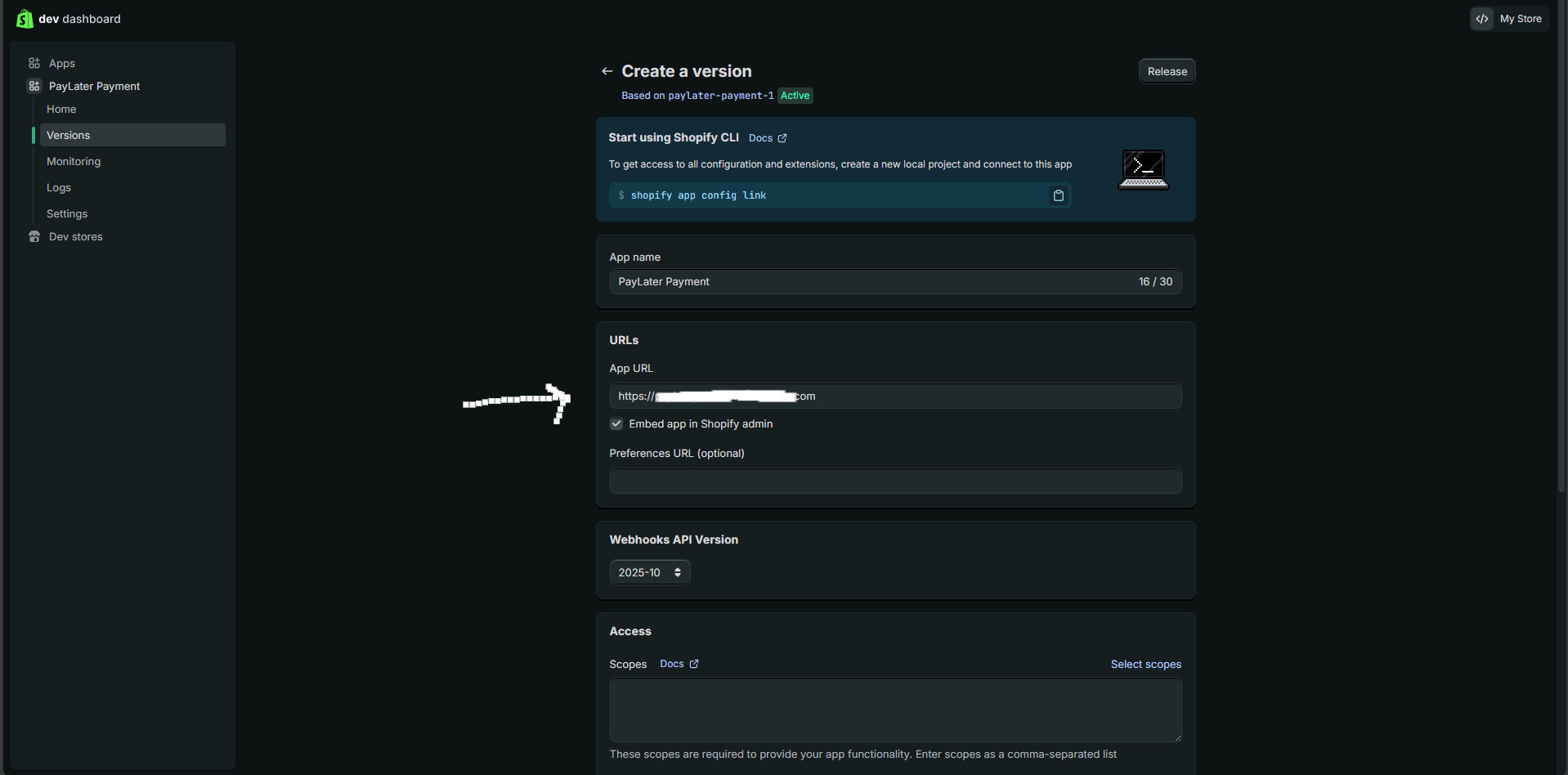
- Fill App URL form with https://shopify.paylaterapp.com/api/webhooks/shopify value
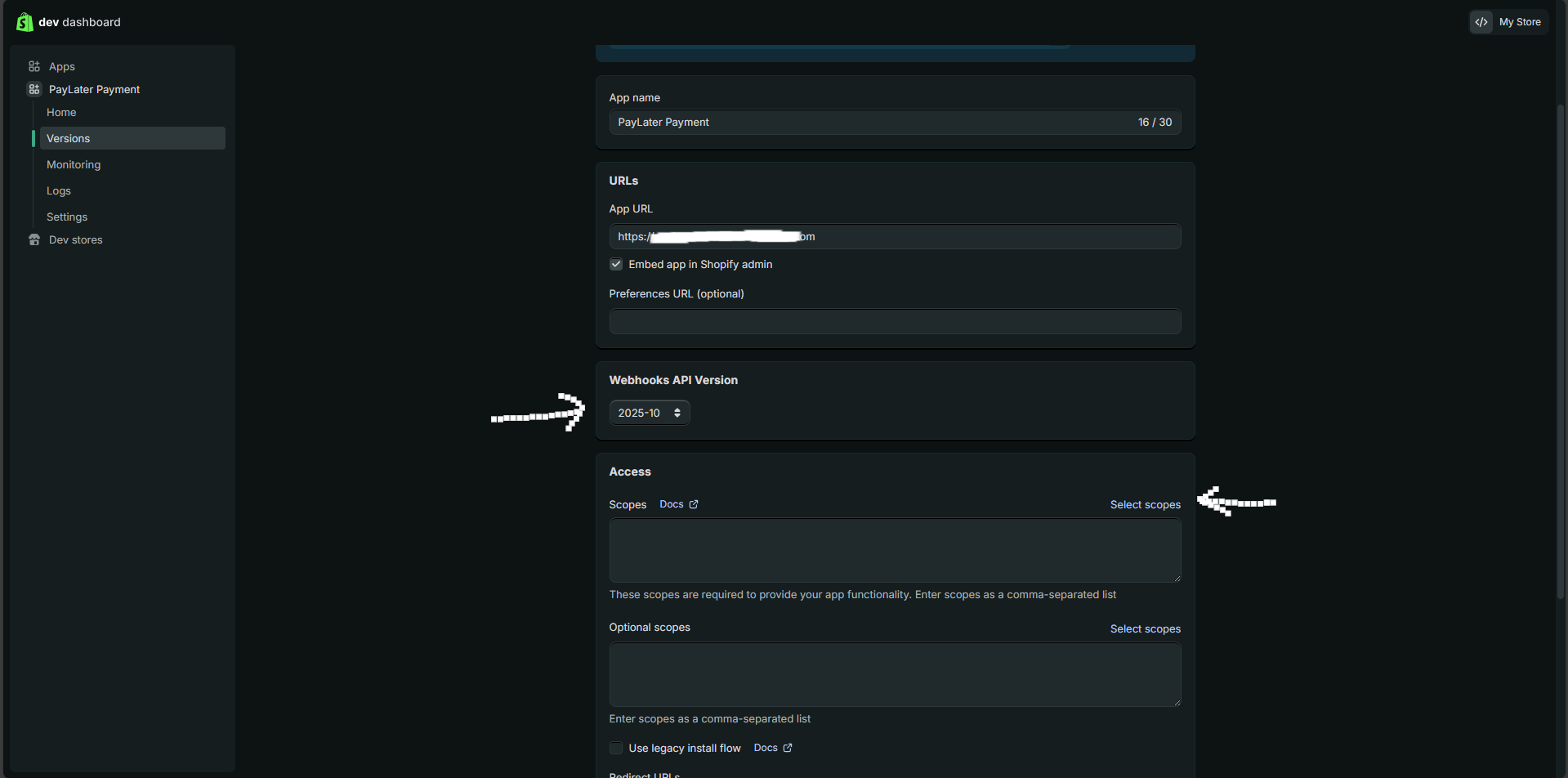
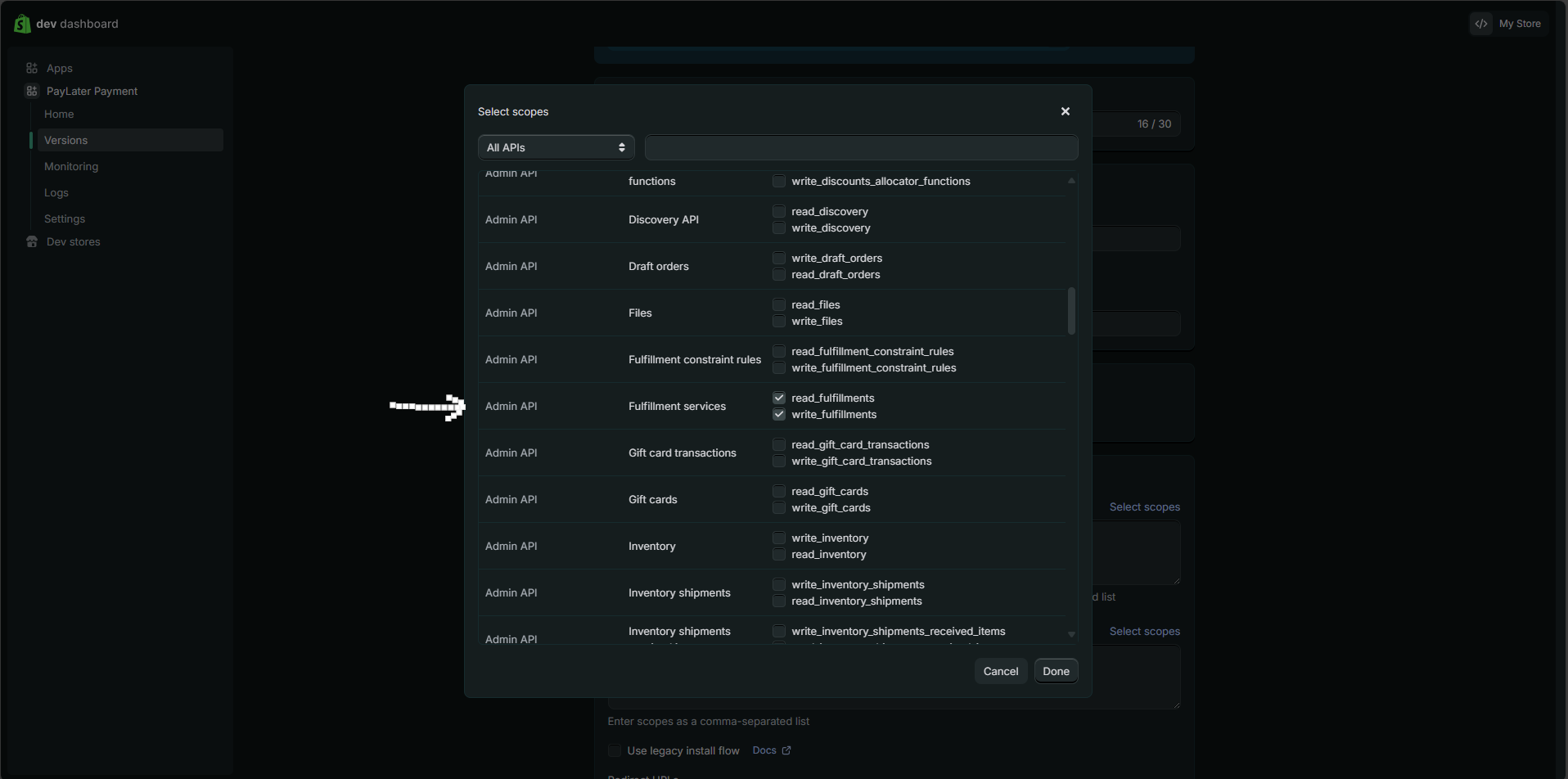
- Select below mentioned Scopes
- Orders (Read and Write)
- Fulfillment Services (Read and Write)
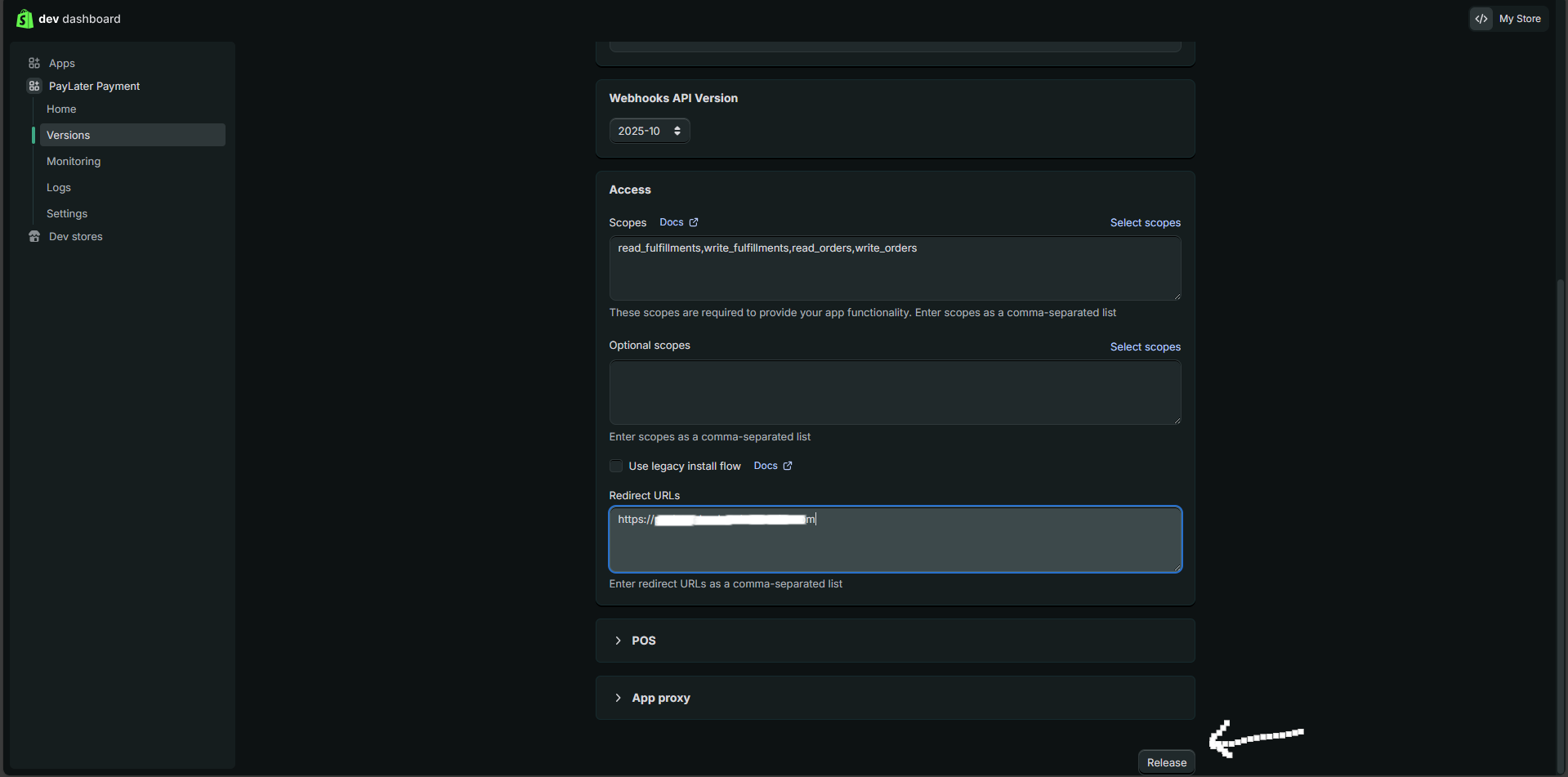
- Also set Redirect URLs form with https://shopify.paylaterapp.com/api/webhooks/shopify value
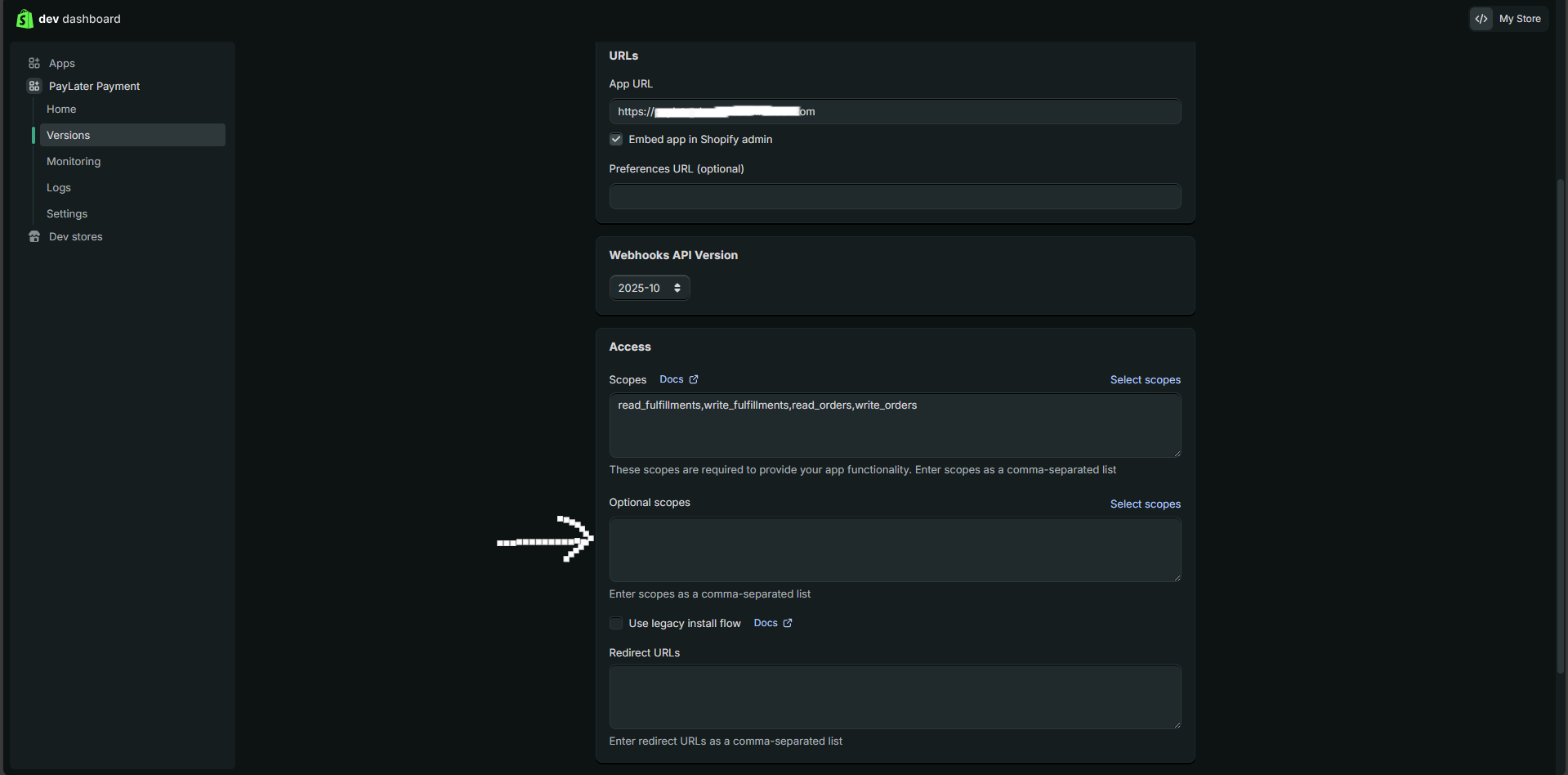
- Click “Release”
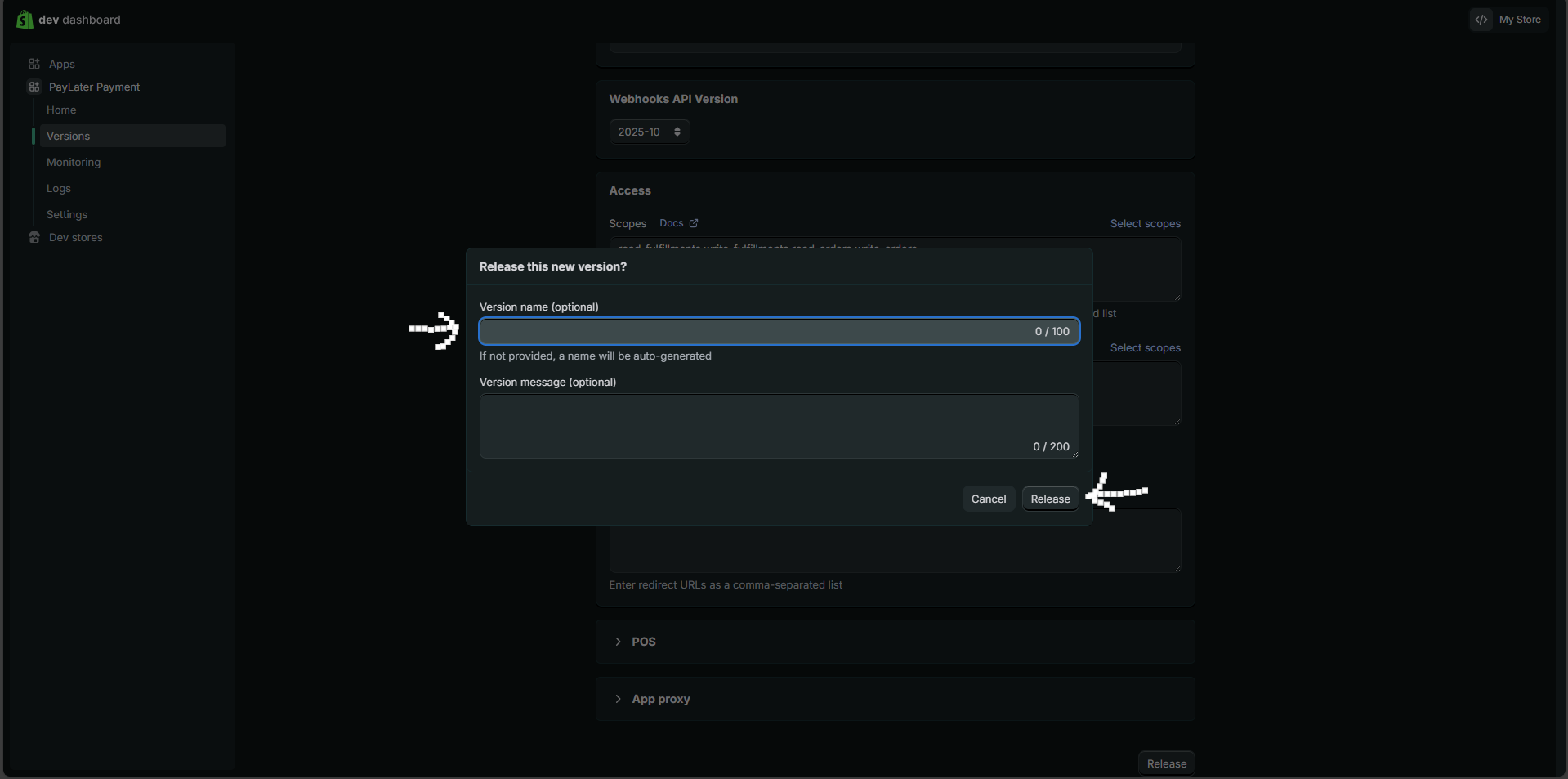
- Set Version name (optional) and then click “Release”
- Version name (optional) ⇒ v1-2025
Step 4: Install the App on Your Store
- Releasing a version does not install the app on your store — you have to install it yourself. Open the PayLater Payment app again (Settings → Apps and sales channels → Develop apps → PayLater Payment).
- On the app’s Overview page, click Install app in the Installs card and confirm the installation.
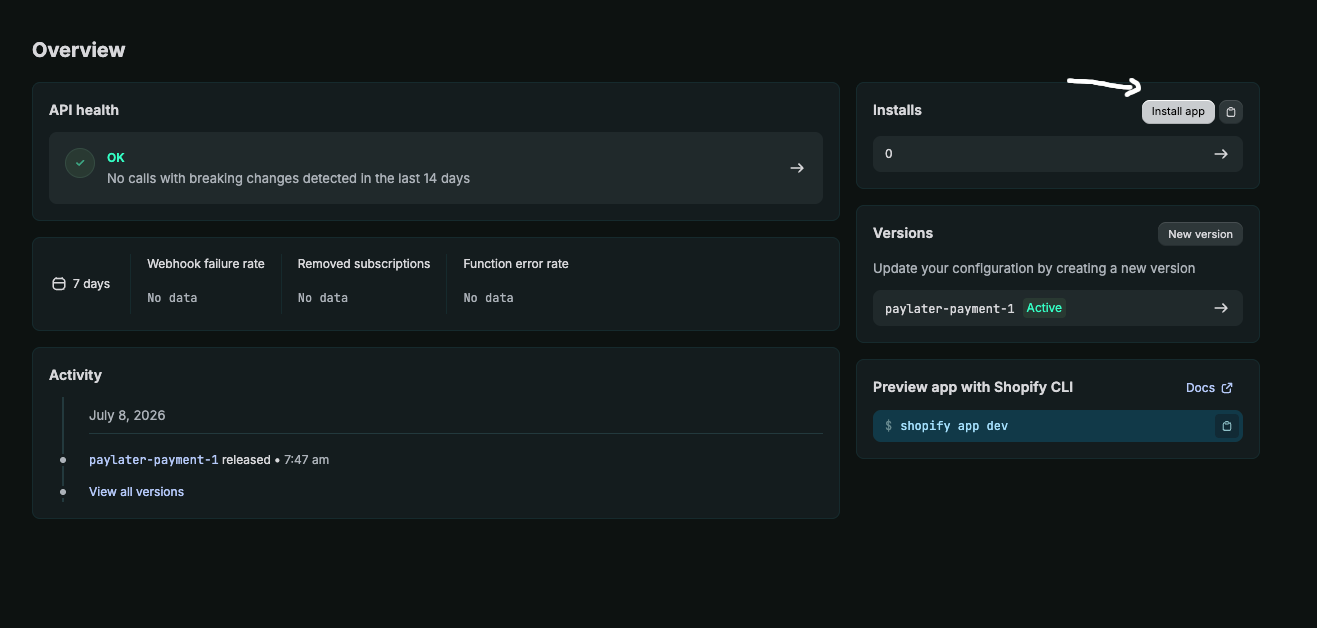
It’s easy to miss. If you release the version but never click Install app, the app stays uninstalled and PayLater won’t receive your orders. Make sure the app shows as installed before you go live.
Final Step:
- Save all the keys you receive during this all process.
- Send following keys to your account manager to activate your store for payments.
- Shop URL (your-store.myshopify.com)
- Access Token (shpat*****************************) or Client ID
- Shopify API Secret (shpss****************************)
Your Shop URL is your store’s permanent .myshopify.com admin domain — not your public website address, and it can’t be changed.
In your Shopify admin, go to Settings → Domains. Your .myshopify.com domain is listed separately from your custom domains.
You can also read it from your admin URL: if the address bar shows admin.shopify.com/store/r8atb0-1h, your Shop URL is r8atb0-1h.myshopify.com.
Need sandbox credentials and a test shopper account to try the flow before going live? See the Test environment.